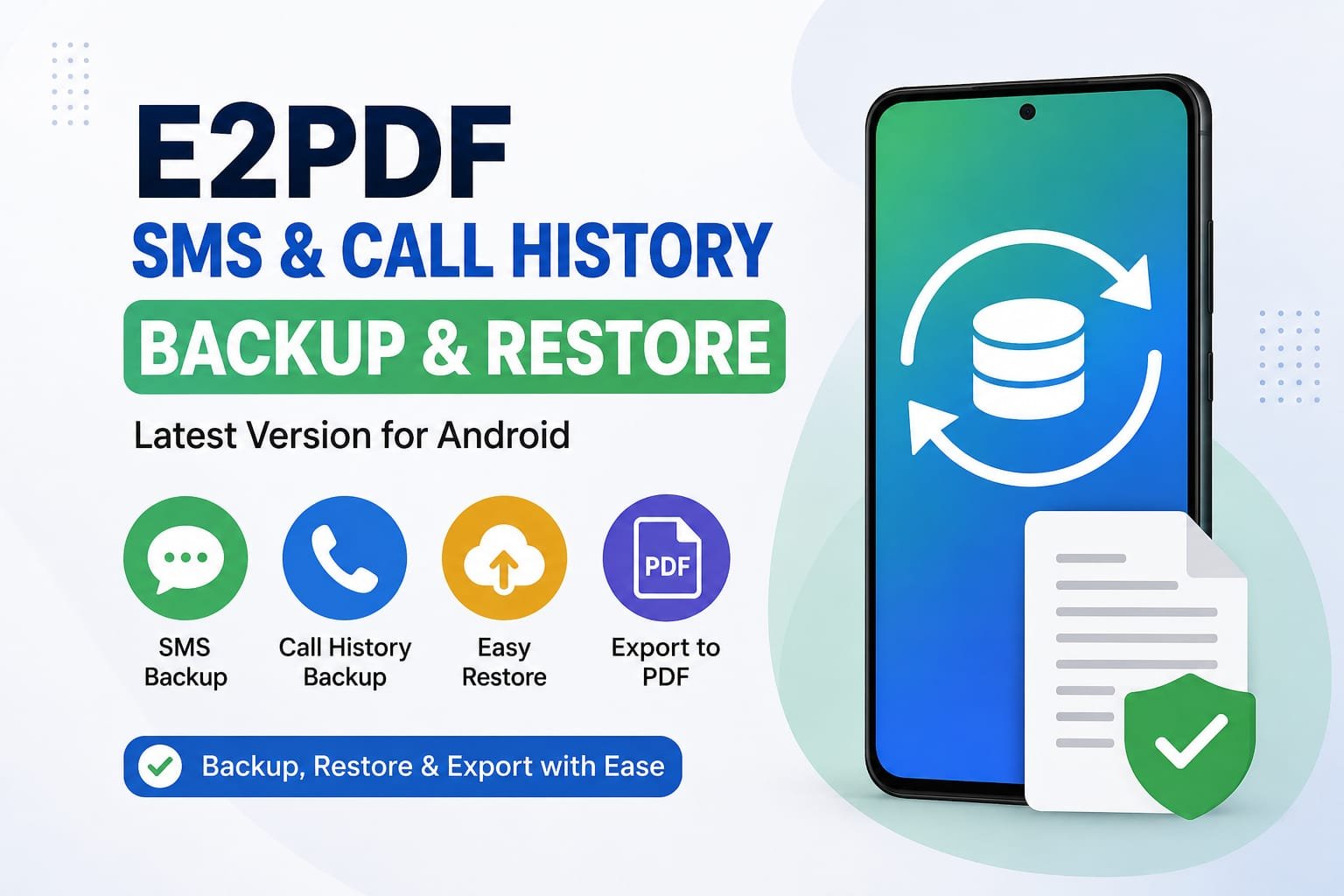
Losing important SMS messages or call history can be frustrating, especially when switching to a new Android phone or after a factory reset. Fortunately, the E2PDF SMS Call History Backup & Restore App makes it easy to create secure backups of your important mobile data in just a few taps.
In this guide, you’ll learn what E2PDF is, its latest features, how it works, and how you can safely back up and restore your SMS, call logs, contacts, and more on your Android device.
What Is E2PDF SMS Call History Backup & Restore App?
E2PDF is a popular Android application designed to help users back up important phone data into easy-to-read PDF or XML files. Unlike many backup apps, E2PDF focuses on simplicity while allowing users to export SMS messages, call history, contacts, and other information in organized formats.
The app is especially useful for:
- Creating SMS backups
- Saving call history
- Exporting contacts
- Keeping personal records
- Migrating data to another Android device
Whether you’re changing phones or simply want an extra copy of your important information, E2PDF offers a convenient solution.
Key Features of the Latest Version
The latest version of the E2PDF app includes several improvements that make data backup easier than ever.
SMS Backup
Users can export text messages into PDF or XML formats. The PDF version is easy to read and useful for keeping personal records.
Call History Backup
The app allows you to save incoming, outgoing, and missed call logs into organized files that can be viewed anytime.
Contact Backup
You can quickly export your contacts and store them safely for future use.
Calendar Export
Some versions also allow users to back up calendar events, making it easier to preserve schedules and appointments.
Easy Sharing
Backup files can be shared through email, cloud storage, or messaging apps for additional security.
How to Use E2PDF on Android
Using E2PDF is straightforward, even for beginners.
Step 1: Install the App
Download the latest version of E2PDF from the Google Play Store.
Step 2: Grant Permissions
Allow access to SMS, call logs, contacts, and storage. These permissions are necessary for creating backups.
Step 3: Select Data to Backup
Choose whether you want to back up:
- SMS
- Call history
- Contacts
- Calendar
Step 4: Choose Output Format
Select either:
- XML
PDF files are ideal for viewing, while XML files are more suitable for restoring supported data.
Step 5: Save or Share
Store the backup locally or upload it to cloud storage for additional protection.
Can E2PDF Restore SMS and Call History?
One common question is whether E2PDF can restore all backed-up information.
The answer depends on the backup format and Android version.
- XML backups may support restoration for certain types of data, depending on the app version and Android device.
- PDF backups are mainly intended for viewing and record-keeping rather than restoring data.
Always check the app’s current documentation to understand which restore features are available for your device.
Benefits of Using E2PDF
Here are some reasons why many Android users choose E2PDF:
- User-friendly interface
- Quick backup process
- PDF export for easy reading
- Supports SMS, contacts, and call logs
- Helpful when changing phones
- Useful for personal record keeping
These features make it a practical tool for anyone who wants better control over their mobile data.
Tips for Safe Data Backup
To protect your information, follow these best practices:
Back Up Regularly
Create backups every few weeks so your latest messages and call logs are always protected.
Store Multiple Copies
Keep one backup on your phone and another in secure cloud storage or on a computer.
Protect Sensitive Files
If your backups contain personal information, store them in secure locations and avoid sharing them publicly.
Verify Your Backup
After creating a backup, open the file to confirm that it contains the expected information.
Frequently Asked Questions
Is E2PDF free?
Yes, E2PDF offers a free version. Some additional features may require in-app purchases depending on the version.
Does E2PDF work on all Android phones?
The app supports many Android devices, although available features can vary based on your Android version and device manufacturer.
Is internet required?
No. Most backup functions work offline after the app is installed.
Can I transfer backups to another phone?
Yes. Backup files can be copied to another Android device using cloud storage, USB transfer, or other file-sharing methods.
Final Thoughts
The E2PDF SMS Call History Backup & Restore App Latest Version For Android is a practical solution for users who want to protect important SMS messages, call logs, contacts, and other personal data. Its simple interface, flexible backup options, and PDF export capability make it an excellent choice for everyday Android users.
Apply